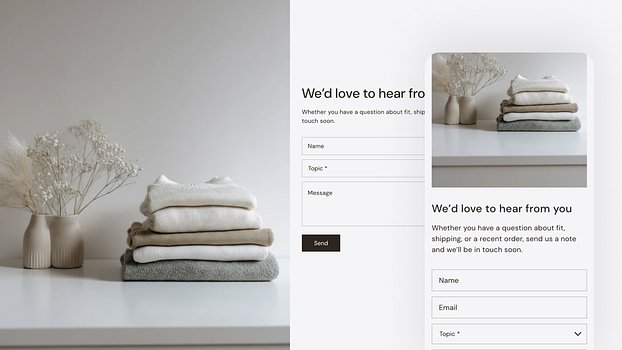
The Contact form with image section combines an image with a contact form to give customers an easy way to get in touch while reinforcing your brand's visual identity.
🧰 How to install the section in your theme
- Open Theme Updater & Backups in your Apps admin
- Open Theme sections
- Click Install below the section. You can also click Preview to see the section in a demo storefront
- On the right side of the page, use the Choose theme dropdown to select the theme you want to enhance with the new section
- Click Install
Add the section to a template
Click Edit theme to open the theme editor for the selected theme.
Open the template (e.g. home page, default product) and click (+) Add section in the sidebar.
Scroll down to the bottom of your default sections list and select 🧰 Contact form with image.
Customize section settings
Click the Contact form with image section to customize general settings for the section.
Media
Add an image by clicking Select image under Media. You can also adjust the image placement to Image first or Image second, as shown in the examples below:
Content
When Include phone number feature is enabled, a Phone number field will also appear below the Name and Email fields.
Section heading allows you to add a title for the section. The heading size can also be adjusted through the Heading size and Mobile heading size sliders.
The Text field can be used to display a short message above the contact form fields, and its font size can be adjusted using the Text size and Mobile text size range sliders.
Button
While "Send" is the default button text for the contact form, you can also customize this label, and the button styling.
Choose colors for the button using the Button color selector.
Customize blocks
Add blocks under the section by clicking (+) Add block
Blocks in this section can add additional fields in your contact form.
Text field
This block adds an input field that can be set as either a single-line or multi-line field for longer responses.
You can make this a required field by enabling the Required setting, which adds an asterisk (*) to the input field.
Dropdown
This block adds a dropdown field to the contact form, allowing users to select from multiple options. Like the Text field, it can also be set as required using the Required feature toggle.
Changelog
May 26th, 2026
FIXED
- Success message bug fix
- UX Improvements
April 23rd, 2026
- Contact form with image added to Theme Sections.